
▸ Learn pixel art
Pixel art for beginners
Pixel art is drawing where individual pixels are part of the design. Instead of letting a soft brush blend an edge for you, you decide where each small block of colour belongs. A tiny character, a game tile or an animated icon can all use this approach.
You do not need a large canvas or a huge palette to start. This guide uses a 16 × 16 sprite and four colours. The drawing ideas work in any editor with a one-pixel pencil. For the exact phone controls, follow our first pixel art tutorial on Android.
Start with a shape you can recognise
Draw a simple silhouette before adding details. A mushroom, a heart or a small slime is easier to read at 16 × 16 than a character covered in accessories. Leave an empty border so the drawing does not feel squeezed against the canvas edges.
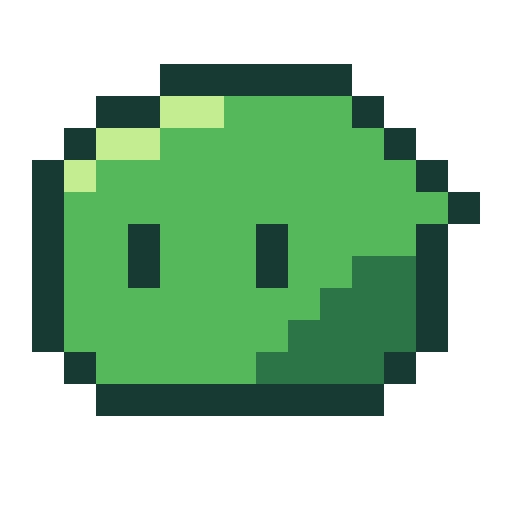
For a slime, draw a flat base, step the sides inward as you move up, then join them with a rounded top. Fill the enclosed shape. Temporarily imagine the whole sprite as one dark colour: if you cannot recognise it, adjust the outline before decorating it.
Use a small palette with clear contrast
Choose an outline, a main colour, a shadow and a highlight. In this example they are #173B32, #55B85A, #2B7547 and #C4ED91. These are a starting point, not a rule: change the greens to purple or blue and keep the difference between light and dark.
Zoom out while choosing colours. Two greens that seem different when enlarged may merge at actual size. The eyes should stand apart from the face, and the outline should be easy to distinguish from the body.
Shade in connected patches
Pick one light direction. Here the light comes from the upper left, so the highlight sits near that corner and the shadow follows the lower right. Build a few connected blocks of colour instead of sprinkling bright pixels across the whole sprite.
A single pixel can be useful for an eye or a tiny shine. But many isolated pixels can make a small drawing harder to read. If shading adds noise, remove it and rebuild one patch at a time.
Keep diagonal edges deliberate
A diagonal is a staircase of horizontal and vertical pixels. Try a consistent rhythm for a straight slope. A curved edge gradually changes that rhythm. Random bumps often become obvious when you view the outline without its shading.
Smooth brushes and automatic anti-aliasing add intermediate colours at the edges. A hard pencil gives you direct control. You can add those intermediate colours yourself later if the style needs them.
Check the sprite at its real size
Zooming in helps place pixels; zooming out tells you whether the drawing works. Check both after changing the silhouette, eyes or shading. Details that only look good at a huge zoom may not help the finished image.
When enlarging the export, use whole-number scales such as 2×, 4× or 8× with nearest-neighbour scaling. This keeps each source pixel the same size. A fractional scale can produce uneven blocks, while smoothing can blur the edges.
Try a two-frame animation
Duplicate the finished sprite and make the second pose slightly shorter and wider. Keep its base aligned, then alternate between the two frames. This small squash is a useful first exercise because you can see the motion without redrawing everything.
Onion skinning shows a neighbouring frame as a reference. Use it to compare the outline and eye positions. Save the editable project before exporting so you can change the timing or colours later.
Common beginner questions
What canvas size should I use?
Try 16 × 16 for a simple icon or 32 × 32 if the subject needs more detail. Neither size is mandatory. A smaller first project gives you fewer decisions to make and makes it easier to finish.
Do I need to know how to draw first?
You can start with simple shapes. Practice helps with colour, proportions and light, but your first sprite does not need to be elaborate. Finish one small drawing, compare it at actual size, then try a second version.
Can I make pixel art on my phone?
Yes. A zoomable canvas, a precise pencil and a reusable palette are enough for the exercise above. Pixsama is a pixel art app for Android with offline drawing and animation tools. The Free and Pro comparison explains project limits and which export formats require Pro.
Ready to draw? Follow the six-step Android sprite tutorial, or use the Pixsama tool manual when you need help with layers, selections or export.